
Scan or Show? Paying with Starryblu Through Alipay+
At a participating Alipay+ checkout, choose whether to scan or show your Starryblu code, read the price and total correctly, and keep a useful purchase record.
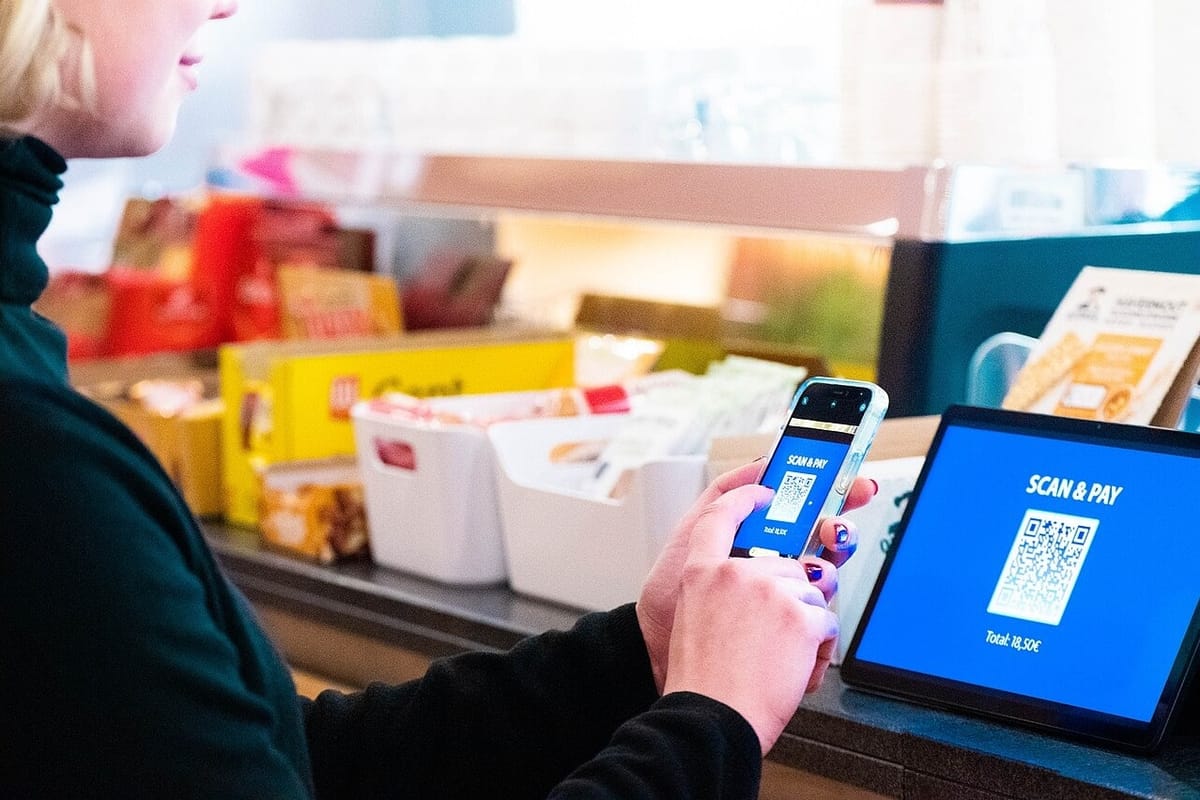
You reach the counter, see an Alipay+ sign and open Starryblu. The cashier has a scanner, but there is also a QR code beside the till. Should you scan something, show something, or download another app?
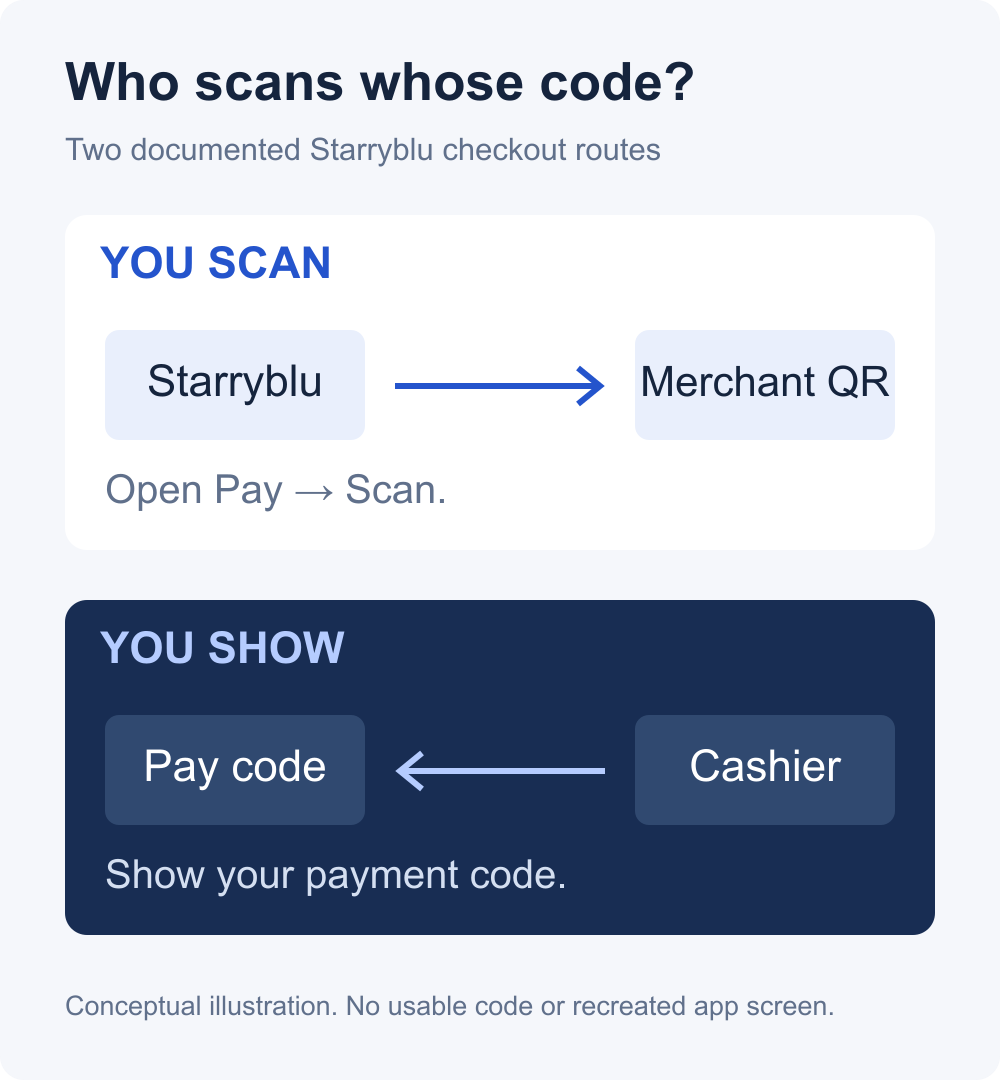
For an accepted Starryblu purchase, there are two documented routes: scan the merchant’s payment code, or present your supported payment code for the cashier to scan. The useful first question is who needs to read whose code. Once that is clear, you can choose the right function and check the transaction you are about to approve.
The acceptance sign connects to your Starryblu app
Alipay+ connects participating payment providers to merchants. Starryblu is one of those providers, with support for both in-store QR modes listed in the Alipay+ provider directory. The network name on the counter and the provider name on your phone can therefore be different.
Alipay itself is a separate consumer app. Seeing Alipay+ does not mean you must first create an Alipay account, move money into an Alipay+ consumer balance, or find an Alipay button somewhere inside Starryblu. For the Starryblu route, use the supported payment function in Starryblu.
The practical advantage for an existing user is that an accepted merchant purchase can stay with a provider they already use. The connection adds a way to use the account, rather than another account to manage. It still depends on the particular merchant, payment mode and your account’s availability; a network sign is an acceptance cue, not a guarantee for every code nearby.
Ask one question before opening the camera
“Should I scan your code, or show mine?” is a useful question at a supported checkout. It tells the cashier what you need to know without requiring either of you to explain payment-network terminology. The answer determines the direction of the transaction.
| The cashier asks | Open in Starryblu |
|---|---|
| Scan our merchant code | The supported scanner: Pay, then Scan. |
| Show your payment code | The supported local payment code for the cashier to read. |
When the merchant displays a payment QR, you scan it from the supported Starryblu function. If the resulting flow asks for an amount, enter the amount agreed with the merchant. Then read the purchase information and follow the confirmation requested by the app.
When the cashier wants to scan your phone, the direction reverses. Present the supported payment code in Starryblu. Opening your camera will not help the cashier read that code; neither will showing a profile or receive-money code. Follow any authentication the app requests and use the resulting payment status to establish the outcome.
The illustrated screen sequences are in Starryblu: Alipay+ Scan & Pay Guide. Choose the sequence matching the merchant’s setup. The guide explains the controls; the decision at the counter is which side supplies the payment code.
A printed QR is not automatically a payment instruction
A counter can display codes for different purposes. One may belong to the merchant’s payment checkout, while another opens a menu, loyalty page or personal transfer flow. Their square shape does not tell you which task they perform.
Ask for the merchant payment code accepted through the relevant route. If scanning takes you somewhere unrelated to the purchase, return to the cashier’s instruction rather than entering an amount simply because a page appeared. This article concerns the merchant-payment methods documented for Starryblu, not every service reachable through a QR code.
A scanner on the counter also needs context. The cashier may be reading a payment code or performing another store task. Let the cashier establish the payment setup first. The useful habit is to identify the purchase and payment direction before presenting a code.
Read the price and the total as different pieces of information
After the correct route opens, the next question is what you are authorising. Start with the merchant and the transaction amount and currency. These identify the purchase. Then read the total payment and any conversion information shown for that transaction.
Currency labels matter as much as the figures. The merchant’s price describes the purchase in its transaction currency; the app’s total describes the payment being proposed through your provider. Two different numbers can be consistent when they refer to different currencies, while a familiar-looking number can still be wrong if you overlook its currency.
The official Starryblu demonstration shows a test merchant, transaction amount, conversion rate and total together. The cropped detail below keeps those fields visible. Its sample numbers explain where to look; they do not quote today’s rate or the cost of your purchase.
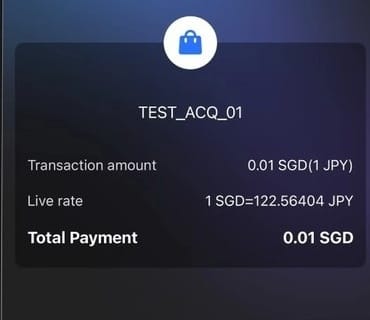
If you entered the amount yourself, compare it with the bill before confirming. If the cashier entered it, read it with the same care. Changing who supplies the QR code does not remove the need to understand the payment amount.
For a price comparison with another accepted method, compare the total cost of the same purchase, in a common currency, using current transaction information. A general “low fee” label or an old exchange-rate screenshot cannot settle that comparison. This article does not claim that Starryblu is cheaper than every alternative.
Multi-currency balances and a purchase have different rules
Starryblu Global Account supports CNH, USD, SGD, EUR, GBP, NZD, HKD, AUD, JPY and CAD balances. That describes the account’s holding capability. It does not establish that every merchant purchase can draw from whichever balance you prefer, or that funding one particular currency guarantees payment.
For the purchase in front of you, the supported payment interface supplies the relevant transaction details. Do not decide the deduction order from the currency list alone. Keeping the account capability separate from the specific purchase prevents an account overview from becoming an assumption about checkout.
This distinction also keeps preparation practical. First establish that the merchant accepts the route and that your account offers it. Then use the information provided for that purchase, rather than converting balances solely because the shop’s country or a network logo suggests a particular currency.
Keep the transaction with the provider you used
A displayed payment code is an input to checkout. The resulting payment status tells you what happened afterwards. Follow any confirmation or authentication requested, then retain the transaction record so you can identify the purchase if you need assistance.
Keep the merchant, date, amount and transaction reference together with the receipt. The receipt identifies the purchase from the store’s side; the provider record identifies the transaction through the app. Having both makes a later question more specific than showing an unexplained balance change.
Alipay+ directs transaction and refund queries to the wallet or payment provider used. For a purchase made through Starryblu, start with the relevant Starryblu record; opening an unrelated Alipay account will not produce that history. The merchant still handles questions about the goods or service you bought.
If you are setting up Starryblu and Singpass is the registration option applicable to you, How to open an account via Singpass in Starryblu APP covers that separate step. Existing users can begin with their own supported payment options. The registration invitation code is MCHB003.
Two details worth checking before the next purchase
Does country coverage prove that a particular shop accepts Starryblu?
No. A supported destination and a participating merchant are different levels of availability. Confirm the store’s accepted route and payment mode; do not treat every QR in that country as the same payment service.
Can I assume another wallet’s Alipay+ features also work in Starryblu?
No. Participating providers can support different services. This article covers Starryblu’s documented in-store scan and present-code methods. A network’s wider list of products is not a feature list for your individual app.


Comments ()